Everything you need to know about Docker Containers - from basic to advanced:
What is Docker?
You probably heard of the statement ‘Write once, run anywhere’, a catchphrase that SUN Microsystems came out with to capture Java’s ubiquitous nature. This is a great paradigm except that, if you have a java application, for example, in order to run it anywhere you need platform-specific implementations of the Java Virtual Machine. On the other end of the ‘run anywhere’ spectrum, we have Virtual Machines. This approach, while versatile, comes at the cost of large image sizes, high IO overhead, and maintenance costs.
What if there is something that is light in terms of storage, abstracted enough to be run anywhere, and independent of the language used for development?
This is where Docker comes in! Docker is a technology that allows you to incorporate and store your code and its dependencies into a neat little package - an image. This image can then be used to spawn an instance of your application - a container. The fundamental difference between containers and Virtual Machines is that containers don’t contain a hardware hypervisor.
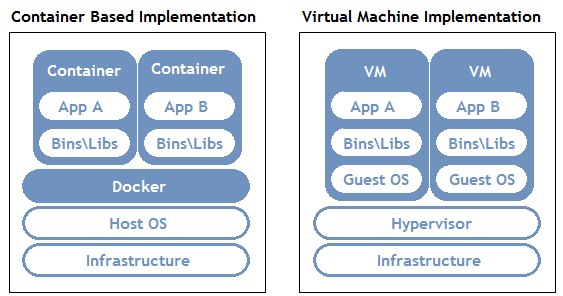
This approach takes care of several issues:
- No platform specific, IDE, or programming language restrictions.
- Small image sizes, making it easier to ship and store.
- No compatibility issues relating to the dependencies/versions/setup.
- Quick and easy application instance deployment.
- Applications and their resources are isolated, leading to better modularity and security.
Docker Architecture
To allow for an application to be self-contained the Docker approach moves up the abstraction of resources from the hardware level to the Operating System level.
To further understand Docker, let us look at its architecture. It uses a client-server model and comprises of the following components:
- Docker daemon: The daemon is responsible for all container related actions and receives commands via the CLI or the REST API.
- Docker Client: A Docker client is how users interact with Docker. The Docker client can reside on the same host as the daemon or a remote host.
- Docker Objects: Objects are used to assemble an application. Apart from networks, volumes, services, and other objects the two main requisite objects are:
- Images: The read-only template used to build containers. Images are used to store and ship applications.
- Containers: Containers are encapsulated environments in which applications are run. A container is defined by the image and configuration options. At a lower level, you have containerd, which is a core container runtime that initiates, and supervises container performance.
- Docker Registries: Registries are locations from where we store and download (or “pull”) images.
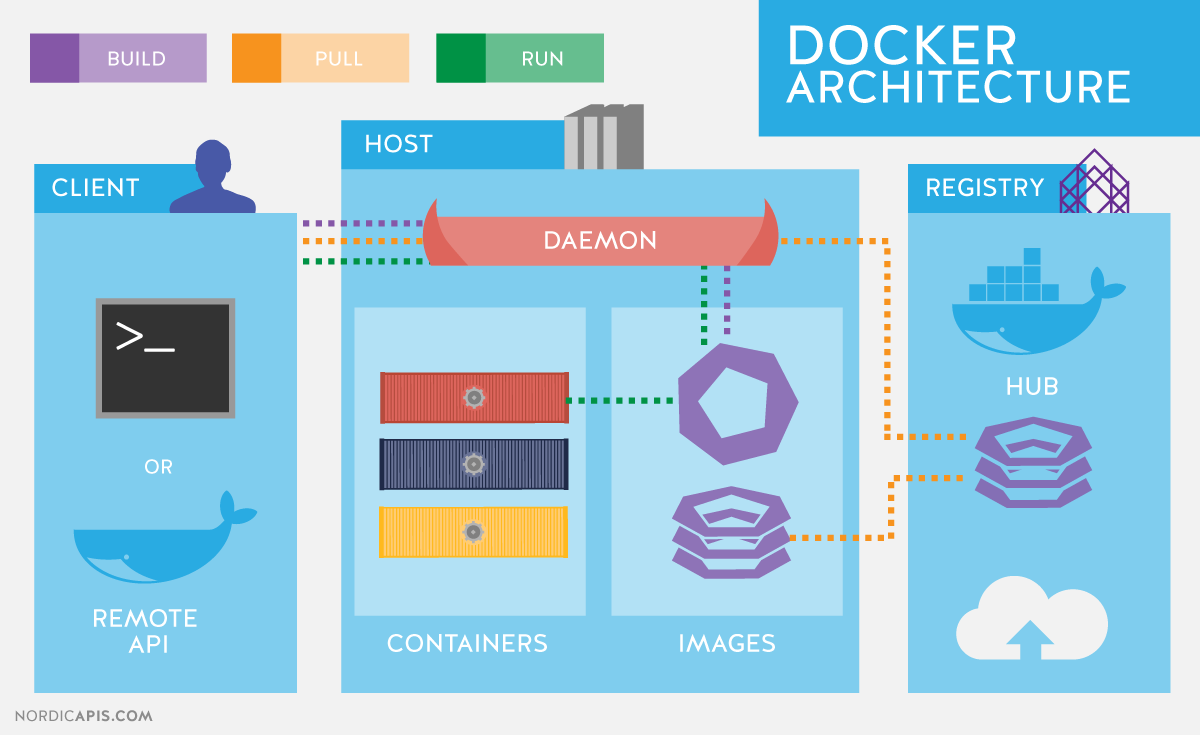
Source: NordicAPIs.com
BASIC DOCKER OPERATIONS..
- Docker Image Repositories — A Docker Image repository is a place where Docker Images are actually stored, compared to the image registry which is a collection of pointers to this images. This page gathers resources about public repositories like the Docker hub and private repositories and how to set up and manage Docker repositories.
- Working With Dockerfiles — The Dockerfile is essentially the build instructions to build the Docker image. The advantage of a Dockerfile over just storing the binary image is that the automatic builds will ensure you have the latest version available. This page gathers resources about working with Dockerfiles including best practices, Dockerfile commands, how to create Docker images with a Dockerfile and more.
- Running Docker Containers — All docker containers run one main process. After that process is complete the container stops running. This page gathers resources about how to run docker containers on different operating systems, including useful docker commands.
- Working With Docker Hub — Docker Hub is a cloud-based repository in which Docker users and partners create, test, store and distribute container images. Through Docker Hub, a user can access public, open source image repositories, as well as use a space to create their own private repositories, automated build functions, and work groups. This page gathers resources about Docker Hub and how to push and pull container images to and from Docker Hub.
- Docker Container Management — The true power of Docker container technology lies in its ability to perform complex tasks with minimal resources. If not managed properly they will bloat, bogging down the environment and reducing the capabilities they were designed to deliver. This page gathers resources about how to effectively manage Docker, how to pick the right management tool including a list of recomended tools.
- Storing Data Within Containers — It is possible to store data within the writable layer of a container. Docker offers three different ways to mount data into a container from the Docker host: volumes, bind mounts, or tmpfs volumes. This page gathers resources about various to store data with containers, the downsides like the persistent storage and information on how to manage data in Docker.
- Docker Compliance — While Docker Containers have fundamentally accelerated application development, organizations using them still must adhere to the same set of external regulations, including NIST, PCI and HIPAA. They also must meet their internal policies for best practices and configurations. This page gathers resources about Docker compliance, policies, and its challenges.
Read more on this wiki: Basic Docker Operations
DOCKER IMAGES
What is a Docker Image?
A Docker image is a snapshot, or template, from which new containers can be started. It’s a representation of a filesystem plus libraries for a given OS. A new image can be created by executing a set of commands contained in a Dockerfile (it’s also possible but not recommended to take a snapshot from a running container). For example, this Dockerfile would take a base Ubuntu 16.06 image and install mongoDB, resulting in a new image:
FROM ubuntu:16.04
RUN apt-get install -y mongodb-10gen
From a physical perspective, an image is composed of a set of read-only layers. Image layers function as follows:
Each image layer is the outcome of one command in the image’s Dockerfile—an image is then a compressed (tar) file containing the series of layers.
Each additional image layer only includes the set of differences from the previous layer (try running
docker historyfor a given image to list all its layers and what created them).
For further reading, see Docker Documentation: About images, containers, and storage drivers
Running Images as Containers
Images and containers are not the same—a container is a running instance of an image. A single image can be used to start any number of containers. Images are read-only, while containers can be modified, Also, changes to a container will be lost once it gets removed, unless changes are committed into a new image.
Follow these steps to run an image as container:
- First, note that you can run containers specifying either the image name or image ID (reference).
- Run the
docker imagescommand to view the images you have pulled locally or, alternatively, explore the Docker Hub repositories for the image you want to run the container from.
Once you know the name or ID of the image, you can start a docker container with the docker run command. For example, to download the Ubuntu 16.04 image (if not available locally yet), start a container and run a bash shell:
docker run -it ubuntu:16.04 /bin/bash
For further reading, see Docker Documentation: Docker Run Reference
Common Operations
Some common operations you’ll need with Docker images include:
- Build a new image from a Dockerfile: The command for building an image from a Dockerfile is
docker build, where you specify the location of the Dockerfile (it could be the current directory). You can (optionally) apply one or more tags to the resulting image using parameters. Use the-toption. - List all local images: Use the
docker imagescommand to list all local images. The output includes image ID, repository, tags, and creation date. - Tagging an existing image: You assign tags to images for clarification, so users know the version of an image they are pulling from a repository. The command to tag an image is
docker tagand you need to provide the image ID and your chosen tag (including the repository). For example:java docker tag 0e5574283393 username/my_repo:1.0 - Pulling a new image from a Docker Registry: To pull an image from a registry, use
docker pulland specify the repository name. By default, the latest version of the image is retrieved from the Docker Hub registry, but this behaviour can be overridden by specifying a different version and/or registry in the pull command. For example, to pull version 2.0 of my_repo from a private registry running on localhost port 5000, run:docker pull localhost:5000/my_repo:2.0 - Pushing a local image to the Docker registry: You can push an image to Docker Hub or another registry to make it available for other users by running the
docker pushcommand. For example, to push the (latest) local version of my_repo to Docker Hub, make sure you’re logged in first by runningdocker login, then run:docker push username/my_repo - Searching for images: You can search the Docker Hub for images relating to specific terms using
docker search. You can specify filters to the search, for example only list “official” repositories.
Best Practices for Building Images
The following best practices are recommended when you build images by writing Dockerfiles:
- Containers should be ephemeral in the sense that you can stop or delete a container at any moment and replace it with a new container from the Dockerfile with minimal set-up and configuration.
- Use a .dockerignore file to reduce image size and reduce build time by excluding files from the build context that are unnecessary for the build. The build context is the full recursive contents of the directory where the Dockerfile was when the image was built.
- Reduce image file sizes (and attack surface) while keeping Dockerfiles readable by applying either a builder pattern or a multi-stage build (available only in Docker 17.05 or higher).
- With a builder pattern, you maintain two Dockerfiles – one to build an application inside the image and a second Dockerfile that includes only the resulting application binaries from the first image to generate a second, streamlined image that is production ready. This pattern requires a custom script in order to automatically apply the transformation from the “development” image to the “production” image (for an example, see the Docker documentation: Before Multi-Stage Builds ).
- A multi-stage build allows you to use multiple FROM statements in a single Dockerfile and selectively copy artifacts from one stage to another, leaving behind everything you don’t want in the final image. You can, therefore, reduce image file sizes without the hassle of maintaining separate Dockerfiles and custom scripts when using the builder pattern.
- Don’t install unnecessary packages when building images.
- Use multi-line commands instead of multiple RUN commands for faster builds when possible (for example, when installing a list of packages).
- Sort multi-line lists of packages into alphanumerical order to easily identify duplicates and make it easier to update and review the list.
- Enable content trust when operating with a remote Docker registry so that you can only push, pull, run, or build trusted images which have been digitally signed to verify their integrity. When you use Docker with content trust, commands only operate on tagged images that have been digitally signed. Less trustworthy unsigned image tags are invisible when you enable content trust (off by default). To enable it, set the DOCKER_CONTENT_TRUST environment variable to 1. For further information see the Docker documentation: Content trust in Docker .
For further reading, see Docker Documentation: Best Practices For Writing Dockerfiles
Read more on this wiki: Docker Images 101
DOCKER ADMINISTRATION
- Docker Configuration — After installing Docker and starting Docker, the dockerd daemon runs with its default configuration. This page gathers resources on how to customize the configuration, Docker registry configuration, start the daemon manually, and troubleshoot and debug the daemon if run into issues.
- Collecting Docker Metrics — In order to get as much efficiency out of Docker as possible, we need to track Docker metrics. Monitoring metrics is also important for troubleshooting problems. This page gathers resources on how to collect Docker metrics with tools like Prometheus, Grafana, InfluxDB and more.
- Starting and Restarting Docker Containers Automatically — Docker provides restart policies to control whether your containers start automatically when they exit, or when Docker restarts. Restart policies ensure that linked containers are started in the correct order. This page gathers resources about how to automatically start Docker container on boot or after server crash.
- Managing Container Resources — Resource management for Docker containers is a huge requirement for production users. It is necessary for running multiple containers on a single host in an efficient way and to ensure that one container does not starve the others in terms of cpu, memory, io, or networking. This page gathers resources about how to improve Docker performance by managing it’s resources.
- Controlling Docker With systemd — Systemd provides a standard process for controlling programs and processes on Linux hosts. One of the nice things about systemd is that it is a single command that can be used to manage almost all aspects of a process. This page gathers resources about how to use systemd with Docker daemon service.
- Docker CLI Commands — There are a large number of Docker client CLI commands, which provide information relating to various Docker objects on a given Docker host or Docker Swarm cluster. Generally, this output is provided in a tabular format. This page gathers resources about how the Docker CLI Work, CLI Tips and Tricks and basic Docker CLI commands.
- Docker Logging — Logs tell the full story of what is happening, or what happened at every layer of the stack. Whether it’s the application layer, the networking layer, the infrastructure layer, or storage, logs have all the answers. This page gathers resources about working with Docker logs, how to manage and implement Docker logs and more.
- Troubleshooting Docker Engine — Docker makes everything easier. But even with the easiest platforms, sometimes you run into problems. This page gathers resources about how to diagnose and troubleshoot problems, send logs, and communicate with the Docker Engine.
- Docker Orchestration - Tools and Options — To get the full benefit of Docker container, you need software to move containers around in response to auto-scaling events, a failure of the backing host, and deployment updates. This is container orchestration. This page gathers resources about Docker orchestration tools, fundamentals and best practices.
Read more on this wiki: Basic Docker Operations
DOCKER ALTERNATIVES
While Docker is the most widely used and recognized container technology, there are other technologies that either preceded Docker, emerged side-by-side with Docker, or have been introduced more recently. All follow a similar concept of images and containers, but have some technical difference worth understanding:
rkt (pronounced ‘rocket’) from the Linux distributor, CoreOS
CoreOS released rkt in 2014, with a production-ready release in February 2016, as a more secure alternative to Docker. It is the most worthy alternative to Docker as it has the most real-world adoption, has a fairly big open source community, and is part of the CNCF. It was first released in February 2016.
Additional reading: Product page , GitHub page
LXD (pronounced “lexdi”) from Canonical Ltd., the company behind Ubuntu
Canonical launched its own Docker alternative, LXD, in November 2014, with the focus of offering full system containers. Basically, LXD acts like a container hypervisor and is more Operating System centric rather than Application Centric.
Additional reading: Product page , GitHub page
Linux VServer
Like OpenVZ, Linux VServer provides operating system-level virtualization capabilities via a patched Linux kernel. The first stable version was released in 2008.
Additional reading: Website , GitHub page
Windows Containers
Microsoft has also introduced the Windows Containers feature with the release of the Windows Server 2016, in September 2016. There are currently two Windows Container types:
- Windows Containers: Similar to Docker containers Windows containers use namespaces and resource limits to isolate processes from one another. These containers share a common kernel unlike a virtual machine which has its own kernel.
- Hyper-V Containers: Hyper-V containers are fully isolated highly optimized virtual machines that contain a copy of the windows Kernel. Unlike Docker containers that isolate processes and share the same kernel, Hyper-V containers each have their own kernel.
See the Microsoft documentation
How Do They Differ from Docker?
Let us take a quick look at how each of these alternatives differs from Docker:
| Rkt | LXD | OpenVZ | LinuxVServer | Windows Containers | |
|---|---|---|---|---|---|
| Compared to Docker | Focuses on compatibility, hence it supports multiple container formats, including Docker images and its own format. Like Docker, it is optimized for application containers, not full-system containers and has fewer third-party integrations available. | Emulates the experience of operating Virtual Machines but in terms of containers and does so without the overhead of emulating hardware resources. While the LXD daemon requires a Linux kernel it can be configured for access by a Windows or macOS client. | An extension of the Linux kernel, which provides tools for virtualization to the user. It uses Virtual Environments to host Guest systems, which means it uses containers for entire operating systems, not individual applications and processes. | Uses a patched kernel to provide operating system-level virtualization features. Each of the Virtual Private Servers is run as an isolated process on the same host system and there is a high efficiency as no emulation is required. However, it is archaic in terms of releases, as there have been none since 2007. | The Docker Engine for Windows Server 2016 directly accesses the windows kernel. Hence native Docker containers cannot be run on Windows Containers. Instead, a different container format, WSC (Windows Server Container), is to be used. |
| Use Cases | Public cloud portability, Stateful app migration, and Rapid Deployment. | Bare-metal hardware access for VPS, multiple Linux distributions on the same host. | CI/CD and DevOps, Containers and big data, Hosting Isolated Set of User Applications, Server consolidation. | Multiple VPS Hosting and Administration, and Legacy support. | |
| Adoption | Moderate. | Low. | Low. | Low - Moderate (Mostly Legacy Hosting). | |
| Used By | CA Technologies, Verizon, Viacom, Salesforce.com , DigitalOcean, BlaBlaCar, Xoom. | Walmart PayPal, Box. | FastVPS, Parallels, Pixar Animation Studios, Yandex. | DreamHost, Amoebasoft, OpenHosting Inc., Lycos, France, Mosaix Communications, Inc. |
| Mindshare Metric | Kubernetes | Docker Swarm |
|---|---|---|
| Pages Indexed by Google Past Year | 1,190,000 | 135,000 |
| News Stories Past Year | 36,000 | 3,610 |
| Google Monthly Searches | 165,000 | 33,100 |
| Github Stars | 28,988 | 4,863 |
| Github Commits | 58,029 | 3,493 |